


You can add different contact persons to your team. This way, each vacancy can have a different contact person. When..
' points='149.931 95.546 300.09 95.546 300.09 53.076 149.931 53.076'%3E%3C/polygon%3E%3Cpolygon id='Fill-7' fill='%23ef7d00' mask='url(%23mask-2)' points='203.559 148.622 246.465 148.622 246.465 0 203.559 0'%3E%3C/polygon%3E%3Cpolygon id='Fill-8' fill='%23d46317' mask='url(%23mask-2)' points='203.557 95.546 246.466 95.546 246.466 53.076 203.557 53.076'%3E%3C/polygon%3E%3Cpolygon id='Fill-9' fill='%237f5ca3' mask='url(%23mask-2)' points='419.6854 141.8702 313.5064 36.7782 343.8494 6.7502 450.0244 111.8412'%3E%3C/polygon%3E%3Cpolygon id='Fill-10' fill='%23e73331' mask='url(%23mask-2)' points='450.0258 36.7796 343.8468 141.8716 313.5078 111.8396 419.6868 6.7506'%3E%3C/polygon%3E%3Cpolygon id='Fill-11' fill='%238a2e35' mask='url(%23mask-2)' points='412.1074 74.3099 381.7654 104.3419 351.4254 74.3099 381.7684 44.2809'%3E%3C/polygon%3E%3Cpolygon id='Fill-12' fill='%232faadc' mask='url(%23mask-2)' points='0 36.782 106.176 141.874 136.518 111.842 30.339 6.753'%3E%3C/polygon%3E%3Cpolygon id='Fill-13' fill='%2395c11f' mask='url(%23mask-2)' points='0 111.8426 30.339 141.8746 136.518 36.7826 106.176 6.7536'%3E%3C/polygon%3E%3Cpolygon id='Fill-14' fill='%23009636' mask='url(%23mask-2)' points='98.5997 74.3126 68.2577 104.3446 37.9177 74.3126 68.2607 44.2836'%3E%3C/polygon%3E%3Cpath d='M513.2454,127.7109 L513.2454,98.5999 L507.8214,98.5999 L507.8214,127.3619 C507.8214,132.6109 506.0544,133.8959 502.9304,133.8959 C501.4564,133.8959 499.9244,133.6029 498.8624,133.2539 L498.8624,137.9199 C500.1004,138.2129 501.5754,138.3879 503.2834,138.3879 C510.5354,138.3879 513.2454,134.2459 513.2454,127.7109 L513.2454,127.7109 Z M530.5744,100.7589 C530.5744,98.8339 528.9834,97.3739 527.0394,97.3739 C525.0914,97.3739 523.5004,98.8899 523.5004,100.7589 C523.5004,102.6829 525.0914,104.1989 527.0394,104.1989 C528.9834,104.1989 530.5744,102.6239 530.5744,100.7589 L530.5744,100.7589 Z M524.3854,137.9789 L529.6894,137.9789 L529.6894,108.9839 L524.3854,108.9839 L524.3854,137.9789 Z M547.4314,100.7589 C547.4314,98.8339 545.8404,97.3739 543.9554,97.3739 C542.0084,97.3739 540.4164,98.8899 540.4164,100.7589 C540.4164,102.6829 542.0084,104.1989 543.9554,104.1989 C545.8404,104.1989 547.4314,102.6239 547.4314,100.7589 L547.4314,100.7589 Z M546.5494,141.1889 L546.5494,108.9839 L541.3024,108.9839 L541.3024,141.6539 C541.3024,146.8469 540.2404,148.3629 536.5874,148.3629 C535.3494,148.3629 533.9944,148.0729 532.8724,147.6639 L532.4024,152.2709 C533.5814,152.6229 535.1724,152.7979 536.4684,152.7979 C544.1324,152.7979 546.5494,148.9459 546.5494,141.1889 L546.5494,141.1889 Z M559.4574,131.2699 C557.4534,131.2699 555.8014,132.9039 555.8014,134.8879 C555.8014,136.8719 557.4534,138.5029 559.4574,138.5029 C561.4584,138.5029 563.1094,136.8719 563.1094,134.8879 C563.1094,132.9039 561.4584,131.2699 559.4574,131.2699 L559.4574,131.2699 Z M630.5284,98.5999 L625.1644,98.5999 L618.2664,125.3189 C617.7364,127.4179 617.3234,129.4609 616.9114,131.7379 L616.8514,131.7379 C616.4414,129.3449 615.8494,126.8349 615.2594,124.7949 L607.6584,98.5999 L601.5264,98.5999 L594.1584,124.5609 C593.5124,126.8939 592.9794,129.3449 592.5664,131.8529 L592.5094,131.8529 C592.0974,129.2859 591.6244,126.8939 590.9184,124.2679 L584.1964,98.5999 L578.4204,98.5999 L588.9144,137.9789 L595.3964,137.9789 L602.8244,111.4349 C603.4734,109.1579 603.9434,106.9409 604.2394,104.6669 L604.2964,104.6669 C604.6524,106.8849 605.1214,109.2179 605.7714,111.4919 L613.3754,137.9789 L620.0344,137.9789 L630.5284,98.5999 Z M644.0164,100.7589 C644.0164,98.8339 642.4254,97.3739 640.4804,97.3739 C638.5364,97.3739 636.9444,98.8899 636.9444,100.7589 C636.9444,102.6829 638.5364,104.1989 640.4804,104.1989 C642.4254,104.1989 644.0164,102.6239 644.0164,100.7589 L644.0164,100.7589 Z M637.8304,137.9789 L643.1344,137.9789 L643.1344,108.9839 L637.8304,108.9839 L637.8304,137.9789 Z M660.8764,100.7589 C660.8764,98.8339 659.2824,97.3739 657.3974,97.3739 C655.4534,97.3739 653.8614,98.8899 653.8614,100.7589 C653.8614,102.6829 655.4534,104.1989 657.3974,104.1989 C659.2824,104.1989 660.8764,102.6239 660.8764,100.7589 L660.8764,100.7589 Z M659.9914,141.1889 L659.9914,108.9839 L654.7444,108.9839 L654.7444,141.6539 C654.7444,146.8469 653.6854,148.3629 650.0294,148.3629 C648.7914,148.3629 647.4354,148.0729 646.3174,147.6639 L645.8444,152.2709 C647.0234,152.6229 648.6144,152.7979 649.9124,152.7979 C657.5734,152.7979 659.9914,148.9459 659.9914,141.1889 L659.9914,141.1889 Z M672.8994,131.2699 C670.8944,131.2699 669.2434,132.9039 669.2434,134.8879 C669.2434,136.8719 670.8944,138.5029 672.8994,138.5029 C674.9034,138.5029 676.5544,136.8719 676.5544,134.8879 C676.5544,132.9039 674.9034,131.2699 672.8994,131.2699 L672.8994,131.2699 Z M722.9404,126.1949 C722.9404,122.1089 720.4634,118.0849 714.9234,117.1529 L714.9234,117.0339 C719.2274,115.6929 722.0544,112.0189 722.0544,107.8759 C722.0544,101.9839 717.8694,98.4249 709.1464,98.4249 C704.3724,98.4249 700.3064,98.5409 697.4174,98.5999 L697.4174,137.9789 C701.3084,138.0379 705.1974,138.1539 707.5554,138.1539 C719.9934,138.1539 722.9404,130.9209 722.9404,126.1949 L722.9404,126.1949 Z M716.4574,108.7499 C716.4574,113.0669 712.9784,115.6339 706.4364,115.6339 C705.0214,115.6339 703.9594,115.6339 702.8404,115.5779 L702.8404,102.8579 C704.4324,102.7989 706.3764,102.7419 708.2044,102.7419 C714.6294,102.7419 716.4574,105.2499 716.4574,108.7499 L716.4574,108.7499 Z M717.2804,126.3699 C717.2804,130.6869 714.3934,133.7779 707.9114,133.7779 C705.5504,133.7779 703.8424,133.6619 702.8404,133.4879 L702.8404,119.7199 C703.7824,119.6599 705.8474,119.6599 706.5534,119.6599 C712.6854,119.6599 717.2804,121.2949 717.2804,126.3699 L717.2804,126.3699 Z M732.1954,137.9799 L737.4994,137.9799 L737.4994,95.3909 L732.1954,95.3909 L732.1954,137.9799 Z M754.8854,100.7589 C754.8854,98.8339 753.2944,97.3739 751.3504,97.3739 C749.4054,97.3739 747.8144,98.8899 747.8144,100.7589 C747.8144,102.6829 749.4054,104.1989 751.3504,104.1989 C753.2944,104.1989 754.8854,102.6239 754.8854,100.7589 L754.8854,100.7589 Z M748.6994,137.9789 L754.0034,137.9789 L754.0034,108.9839 L748.6994,108.9839 L748.6994,137.9789 Z M771.7454,100.7589 C771.7454,98.8339 770.1544,97.3739 768.2664,97.3739 C766.3224,97.3739 764.7304,98.8899 764.7304,100.7589 C764.7304,102.6829 766.3224,104.1989 768.2664,104.1989 C770.1544,104.1989 771.7454,102.6239 771.7454,100.7589 L771.7454,100.7589 Z M770.8604,141.1889 L770.8604,108.9839 L765.6134,108.9839 L765.6134,141.6539 C765.6134,146.8469 764.5544,148.3629 760.8984,148.3629 C759.6604,148.3629 758.3054,148.0729 757.1864,147.6639 L756.7134,152.2709 C757.8924,152.6229 759.4834,152.7979 760.7824,152.7979 C768.4434,152.7979 770.8604,148.9459 770.8604,141.1889 L770.8604,141.1889 Z M783.7684,131.2699 C781.7644,131.2699 780.1124,132.9039 780.1124,134.8879 C780.1124,136.8719 781.7644,138.5029 783.7684,138.5029 C785.7724,138.5029 787.4234,136.8719 787.4234,134.8879 C787.4234,132.9039 785.7724,131.2699 783.7684,131.2699 L783.7684,131.2699 Z' id='Fill-15' fill='%2395c11f' mask='url(%23mask-2)'%3E%3C/path%3E%3C/g%3E%3C/g%3E%3C/svg%3E)

Complete Your Organization Page
Before you post a vacancy, it is important to first add all your organization’s details to the ‘Our Organization’ page. People who are interested in the vacancy can then also see this information, and you’ll make a great first impression!

Above you can see where to click to navigate to the page.
Step-by-step: editing or adding information
With the steps below, you can easily add all information.
1) Adding information
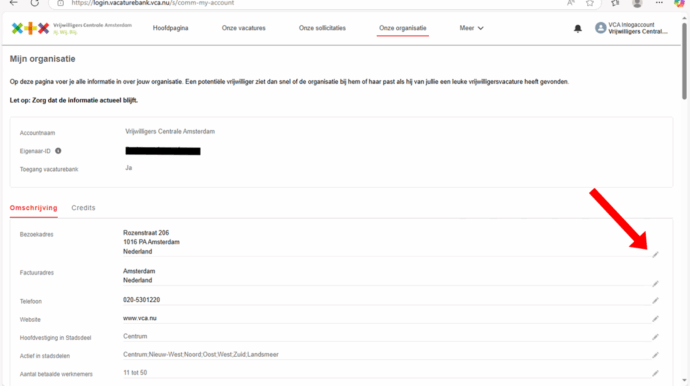
When you are on the ‘Our Organization’ page, it looks like the image below. Click on a pencil icon to edit or add information.
2) Adding a photo and/or video
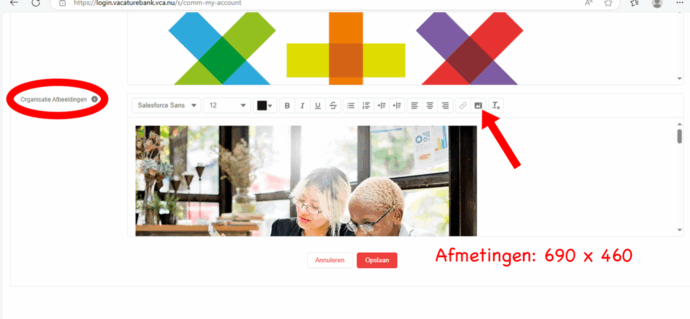
To add a photo, scroll down to ‘Organization Images’ and click on the icon indicated by the arrow. Please note! The image must have the dimensions: 690 x 460. Below that, you can paste a link to a video in the ‘Organization Video’ field.
3) Adding a Logo
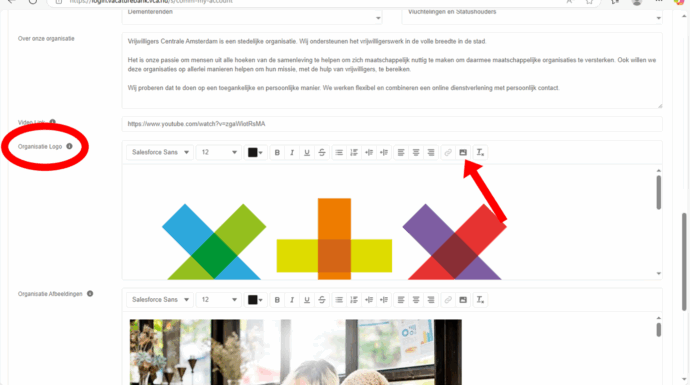
To add a logo, click on the image icon next to ‘Organization Logo’ (indicated by the arrow). You can then add your own logo. You only need to do this once, and the logo will automatically appear with every vacancy you post on the vacancy board.
NOW CONTINUE TO: